Workplace info screens: what to show on the break room and shop floor TV
A paper notice on the wall goes stale fast, and email goes unread on the shop floor. An info screen in the break room or production hall reaches people who don't sit at a computer. Here is what to show, how to set up the TV and why the content has to update itself.
- hours24 team
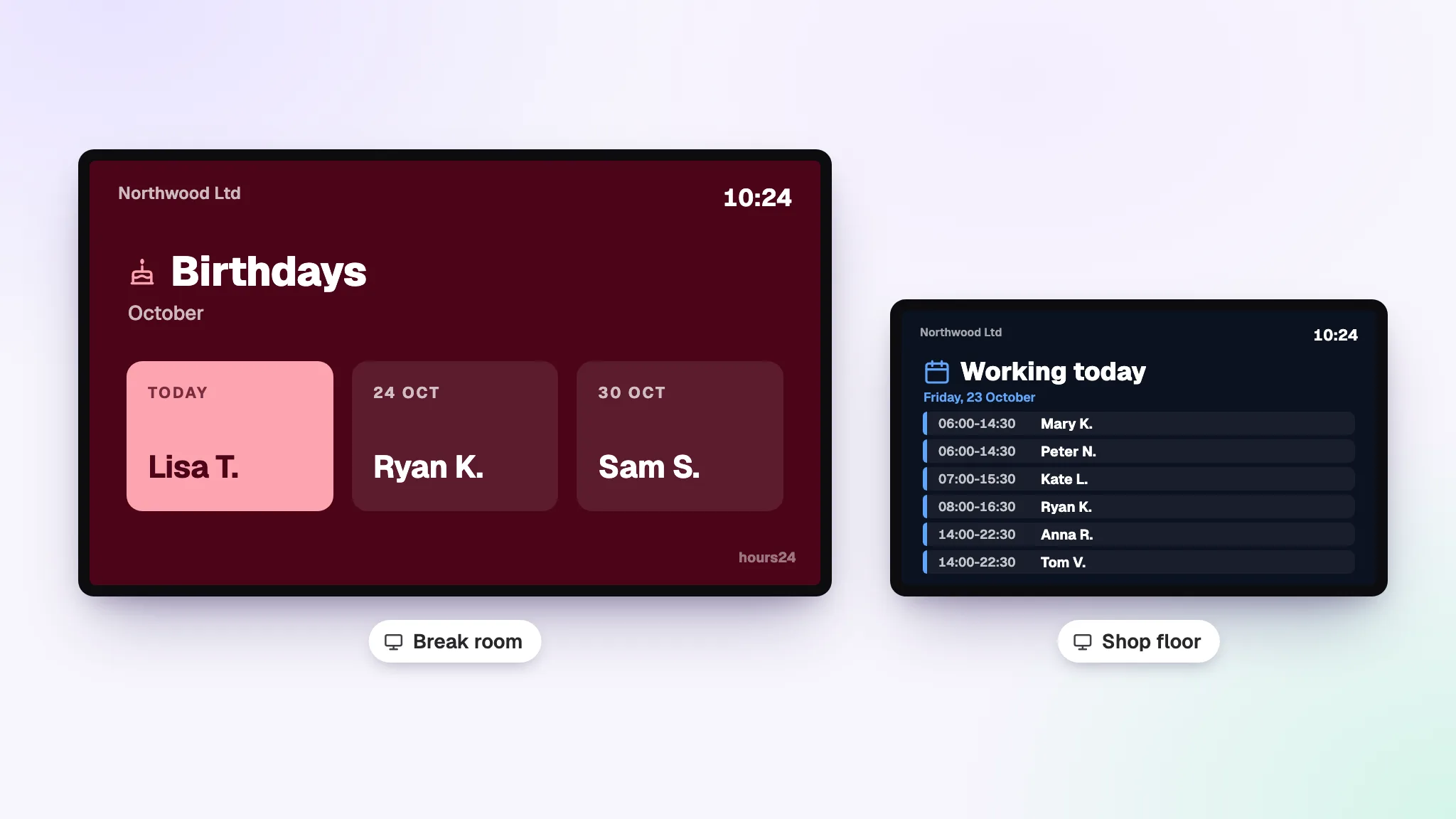
Every workplace has a spot everyone walks past: the break room, the coffee corner, the corridor to the changing rooms or the door to the shop floor. There is usually a notice board there, with last month's schedule, an invitation to an event that is long over and a few notices nobody is sure are still valid.
The same spot often has a TV as well. It shows a news channel or is switched off. An info screen puts that TV to work: company announcements, the work schedule and colleagues' birthdays rotate on the screen, and the content updates itself.
Why paper notices and email don't work
In an office, information reaches people by email and chat. In production, warehouses, shops and kitchens, many people work without a computer and keep their phone in their pocket during the shift. Email goes unread, and an important message gets lost among ten others in the group chat.
A paper notice on the wall does get seen, but only as long as someone keeps it up to date. When the schedule changes, it has to be printed again. When an event is over, someone has to take the notice down. Usually nobody does, and a few weeks later nobody looks at the board anymore.
What to show on an info screen
A good info screen shows things that matter to people today or this week. These work in almost any company:
- announcements: coffee morning on Friday at 3 pm, car park repairs, visitors on the shop floor, a new safety rule
- the work schedule: who is working today or what this week looks like
- birthdays, work anniversaries and new colleagues, so nobody goes unnoticed
- employee of the month, chosen by colleagues
- survey results, for example what the team thought about the summer event venue or the new workwear
- a big number, for example days without a workplace accident, which grows by itself every day
- a QR code that opens a survey, a feedback form or a guide on the phone
- in production, today's process plan: which job is under way and who is doing it
- photos from the summer event, a new product or a finished project.
An info screen only stays alive if the content updates itself
Most info screens fall silent for the same reason as paper notices: someone has to update them by hand. If the schedule reaches the screen from an Excel file and birthdays from someone's memory, within a couple of weeks the screen is as outdated as the notice board next to it.
That is why the content should come from where the data already lives. When the work schedule, employee records and surveys are in the same system, the screen keeps itself current: a schedule change reaches the TV, a birthday appears on the right day and survey results show the latest answers. Only announcements need to be written by hand.
A good rule of thumb: anything that changes daily or weekly should come to the screen from data. Add by hand only what someone would have to write anyway, such as a notice about the coffee morning.
Six tips to make sure people actually look
- One idea per slide. People glance at the screen for a couple of seconds, usually while walking past. A short heading and a couple of lines of text is the maximum.
- Large text. It has to be readable from several metres away. If you run out of space, shorten the text, not the font size.
- Five to eight slides at a time. With too many slides, nobody watches the whole loop and an important notice gets lost.
- Every notice has an end. Give a notice an end date and it disappears by itself once the event is over.
- Each location its own content. The shop floor needs the schedule and the accident-free days counter, the break room needs announcements and birthdays. Not every TV has to show the same thing.
- Think about personal data. No more should reach the wall than necessary: a birthday without the age, a name in short form and survey results as a summary rather than individual answers.
How it works in hours24
hours24 info screens take their content straight from hours24: the work schedule, employee records, surveys and the process plan. No separate digital signage software is needed. A smart TV with a browser works, or a regular TV with a Chromecast, Fire TV or a small computer.
- Turn the module on: Settings > Modules > Info screens.
- Add slides: choose the type, write the text and pick a colour. The preview shows right away how the slide will look on the TV.
- Open app.hours24.app/display in the TV's browser. A six-digit code appears on the screen.
- Enter the code in hours24 (Info screens > Screens > Connect a new TV). A few seconds later the TV starts showing slides.
The TV needs no account or password. Each TV gets a name, such as Break room or Shop floor, and for every slide you choose which TVs show it. The TV checks for new content every 30 seconds, so changes reach the wall quickly.
Slides that update themselves
| Slide | Where the content comes from |
|---|---|
| Work schedule | Published shifts for today, this week or this month. Shifts of people on leave are not shown. |
| Birthdays | From employee records, by month or by week. Age is not shown. |
| Work anniversaries and new colleagues | From the employment start date. |
| Employee of the month | From a colleague vote once a manager has confirmed the winner, or you choose. |
| Survey results | From an hours24 survey, as a summary only. |
| Days without an accident | Counts the days by itself from a date you pick. |
| Process plan | Today's plan from hours24 projects. |
Personal data on the wall
An info screen is a public surface: visitors and couriers see it too. That is why hours24 shows only the name and day for birthdays, never the age, and names appear in short form by default (e.g. Lisa T.). Survey results are always a summary: individual answers and free text are never shown on the TV, and the results of an anonymous survey only appear once there are at least three respondents.
You can also restrict a TV so that it only works on the company network. It is a good idea to agree with the team before showing birthdays, as not everyone wants their special day on the wall.
Frequently asked questions
What kind of TV do I need?
Any TV with a browser, or a regular TV with a Chromecast, Fire TV or a small computer. There is no software to install.
Does the TV need a user account?
No. The TV is paired with a one-time code and only shows slides.
Can different TVs show different content?
Yes. For every slide you choose which TVs show it. If you don't choose, the slide appears on all TVs.
Can I schedule a notice in advance?
Yes. A slide can have a start and an end date, so it appears and disappears by itself.
What happens if a slide has nothing to show?
If there are no birthdays this month, for example, the slide is skipped. If there are no slides at all, the TV shows the company logo and a clock.
How much does it cost?
Info screens are part of the hours24 Pro plan, and you turn the module on yourself in the settings.
Summary
Info screens are not a new idea, but most of them end up unused because someone has to update them by hand. When the content comes straight from the work schedule, employee records and surveys, the screen keeps itself current and people get used to looking at it.
Want to see how an info screen would work at your company? Book a free demo and we will show you how to get a TV running in a few minutes.
Want to see how an info screen would work at your company?
Learn more: Info Screens