Erply and hours24: sales in the schedule show whether the right number of people work at the right time
Sales by the hour come straight from the Erply till into the work schedule. You see at once when a store or restaurant is understaffed or overstaffed, and you add the missing shift with one click. Stores and employees come over from Erply too.
- hours24 team
Every store or restaurant manager has a feel for when it gets busy. On Friday evening there is a queue at the till, on Tuesday morning three people wait for customers. The gut feeling is often right, but not always, and the schedule is still made by feel, because sales live in the POS system and the work schedule somewhere else.
Now the two meet. hours24 connects to Erply: stores and employees come over from the POS system, and sales by the hour land straight in the work schedule. While you build the schedule, you see at once whether the right number of people work at the right time.
The connection suits any business whose sales run through an Erply till: a store, a restaurant, a café or a fast food outlet. The question is the same everywhere: how many receipts come in each hour, and are there enough people at work for them.
What sales in the schedule show
Once Erply is connected, the schedule toolbar gets a Sales button. A row appears above the week, and for every day it shows:
- the day's sales
- sales per working hour, or labour cost as a percentage if hourly rates are on
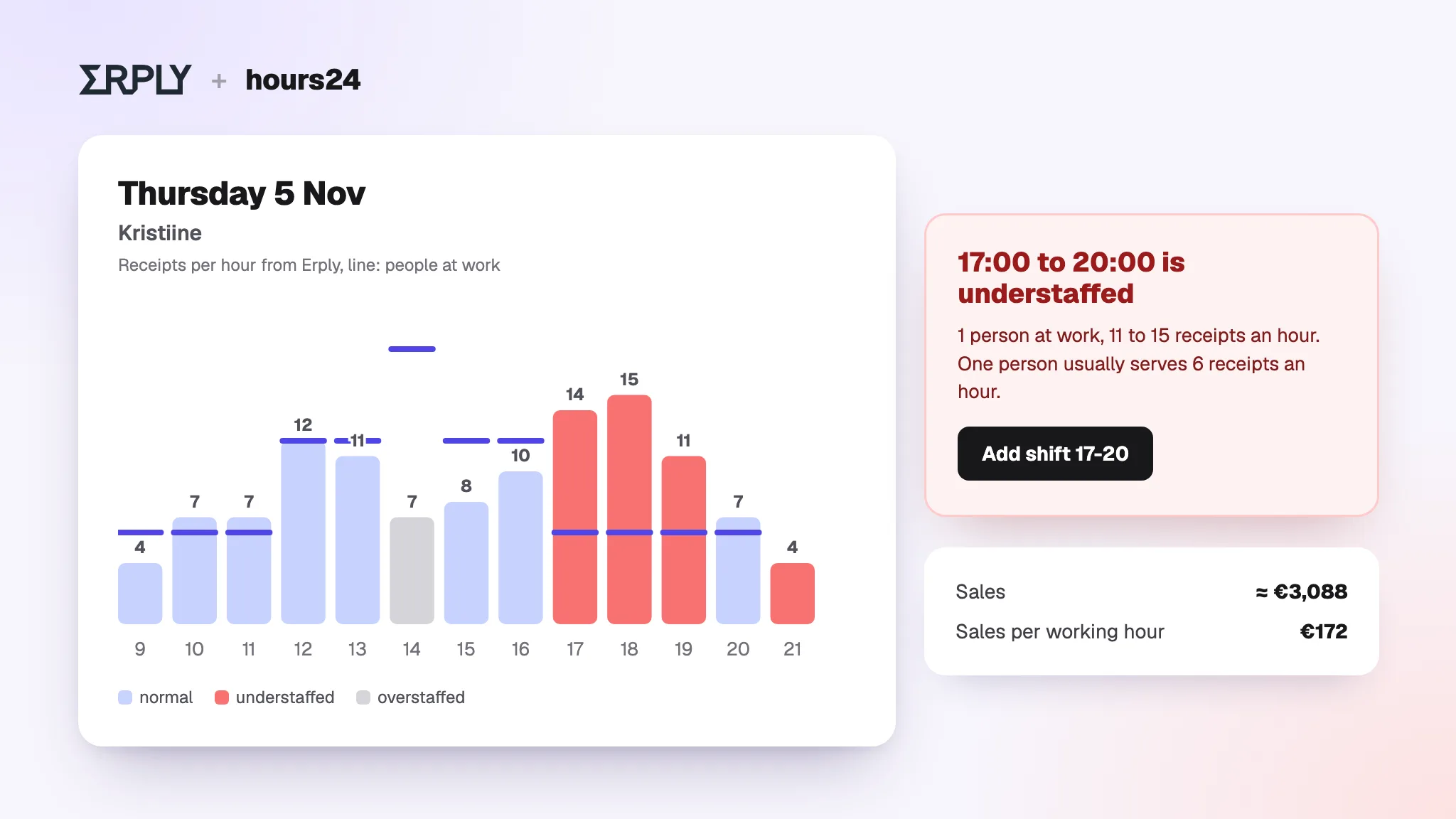
- a small hourly curve where a red hour means too few people are planned for the sales, and a grey hour means there are more people than needed.
Past days show actual sales, from today on a forecast. The forecast is simple and honest: the average of the same weekday over the last four weeks. Fridays are compared with Fridays, not with the monthly average.
Click a day to see where the gap is
Clicking a day opens the hourly curve together with that day's shifts. The bars show receipts per hour from Erply and the line shows how many people are at work. Next to it, plain sentences say where the store is understaffed and where it has people to spare.
For example, from 17:00 to 20:00 one person is at work and 11 to 15 receipts come in an hour, but in this store one person usually serves 6 receipts an hour. The Add shift 17-20 button opens a new shift for exactly the missing time, with the times already filled in. On the same day at 14:00, three people are at work for seven receipts, so there are people to spare.
There is nothing to set up. The store's usual pace, meaning how many receipts one person serves an hour, is calculated from the store's own data over the last four weeks. Every store gets its own norm.
Stores and employees come over from Erply
The connection is not only about sales. When you connect, you choose which Erply stores come over as units, and employees come over with their store. Before anything changes you see a review: new people, changed details and employees who have disappeared from Erply are listed separately, and you choose what to apply.
No invitation is sent to a new employee automatically: you send it when you are ready. When an employee disappears from Erply, nothing is deleted: you only get a suggestion to archive them.
Which system owns what
| Erply | hours24 |
|---|---|
| Stores | Contracts and pay |
| Name, email, phone | Schedule and working time |
| Which store a person works in | Leave and absences |
| Whether the person exists in Erply | Permissions, personal ID and invitations |
The connection only reads from Erply and checks for changes every night, and you can sync right away when needed. Nothing is written to Erply, and the sync never changes working time, schedules, contracts, pay or leave.
How to connect
- Create a separate API user in Erply for the integration. Turn off the password change requirement for its user group, so an expired password does not break the connection.
- Open Settings > Integrations > Erply and enter the Erply client code and the API user's details. The password is stored encrypted.
- Choose which stores come over as units.
- Go through the employee review and press Apply. The first sync also brings 90 days of sales history.
- Open the schedule and press Sales. With several stores, link each schedule group to its store, so hours24 knows which store's sales to show above the group.
Why it matters
In retail and hospitality, labour is usually the biggest cost a manager can control. If one person too few is on in the evening, some sales are lost and the queue drives customers away. If one person too many is on in the morning, you pay for hours that bring no extra sales. Both are hard to spot when the sales figures sit in another system.
Sales in the schedule do not make the decision for you. They put two numbers in the place where the schedule is made: how much is sold and how many people are at work.
Frequently asked questions
Does the connection change anything in Erply?
No. The connection only reads stores, employees and sales from Erply.
How often is the data updated?
Every night. In the Erply settings you can also press Sync now.
Who can see the sales?
Sales in the schedule are visible to people who are allowed to edit the schedule. A regular employee does not see sales figures.
How is the forecast made?
Sales for future days are the average of the same weekday over the last four weeks of Erply data.
What happens when an employee disappears from Erply?
Nothing is deleted. The review shows them as an employee who has disappeared from Erply, and you can archive them yourself.
Summary
The Erply and hours24 connection brings till sales to the place where the schedule is made. Week by week you see when you are understaffed or overstaffed, and you fix it before the day arrives. Stores and employees come over from Erply, and you decide on every change yourself.
Using Erply? Book a free demo and we will show you how sales from your stores or restaurants would look in the schedule.
Using Erply? See how your sales would look in the schedule.
Learn more: Scheduling